
Are you wondering, "Why is my PowerPoint file so large?"




PowerPoint presentations can easily increase in size over time. As you’re adding more video, images, audio, and slides, the file size will increase as well.
This might make it challenging for the recipient to open or work with. Luckily, there are some good techniques to help you reduce the size of your PPT files. I’ll walk you through several tips and tricks to reduce your PowerPoint file size.
Quick Ways to Reduce Your PowerPoint File Size (Watch & Learn)
In this quick video, I’ll teach you my techniques to reduce PowerPoint file sizes. I’ll walk you through several ways to help compress your PowerPoint presentations.
These tips will help you trim a file before you share it with others. If you’re asking, “Why is my PPT file so large?” this video is for you. Watch to learn all about reducing the size of a PowerPoint file!
Miss any of the tips in the video, or prefer a written version of these steps? Check out the instructions below to find out more about how to reduce your PowerPoint file size.
Need More Help? Download Our eBook on Making Great Presentations (Free)

We also have a helpful complement to this tutorial. Quickly grab it before you read on. Download our FREE eBook: The Complete Guide to Making Great Presentations. In it you’ll learn how to you write, design, and deliver the perfect presentation.
How to Reduce Your PowerPoint File Size
Wondering “Why is my PPT file so large?” The answers lie below.
Often, I find myself hitting my email attachment limit when sending slides to others. Of course, I could put it in a Dropbox share or upload it online. But the real problem is that the presentation should be downsized first. When you reduce file size in PPT, your presentations will be more shareable.
In our tutorial, we’ll work with the Agio PowerPoint Presentation from Envato Elements. It’s a premium template with some great features and expertly crafted styles. Download it today to follow along with our tutorial.

Now, let’s learn how to reduce your PowerPoint file size. We’ll learn all about compression and other ways to shrink your PowerPoint PPT file size down. These are quick and easy tips and tricks for PowerPoint reducing file size.
Note: This tutorial was created using Windows and Office 365. If you’re using a different operating system or a different version of Windows, your steps may be slightly different.
1. Compress Selected Pictures in PPT File
Images are easily one of the largest parts of most PowerPoint presentations. Compressing them can decrease the size of your PowerPoint file.
Often, I find myself using many images in my presentations. This is a great design technique – after all, photos make any slide much more interesting!
But as I do this, I’m often using large image files, without thinking of how the file size affects my PowerPoint file. That can make for a quick and fluid design process. But it can leave you with some cleanup needed.
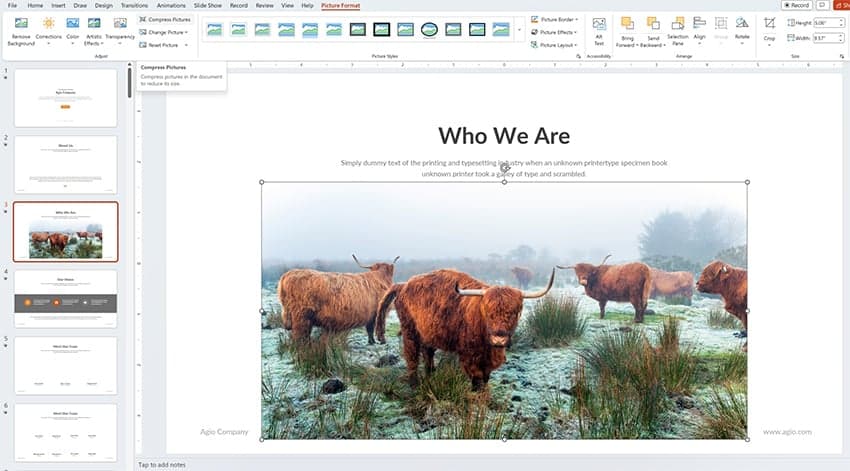
To get started with image compression, select an image in your PowerPoint PPT file. On the ribbon, you’ll see a Picture Format tab. Click on this tab, and then find the Compress Pictures option.
Click on Compress Pictures in PowerPoint, and the Compress Pictures menu will launch.

On this menu, there are two key settings to check:
- Ensure that Delete Cropped Areas of Pictures is checked. This removes any pixels that we’ve already cropped out of an image. Keep in mind that this prevents you from re-cropping the picture to include those pixels later.
- Set a Resolution on the lower end of the options, such as 96 ppi. This reduces the fidelity of images and thus decreases the PowerPoint PPT file’s size.
If you’ve got several large images that you want to compress, use this feature as a starting point. It’s a great way of reducing the PowerPoint file size quickly.
2. Compress All Pictures in Your PowerPoint
Let’s learn how to batch compress every image in a presentation. This is a streamlined way to reduce the file size in PowerPoint. You can apply the same reduced-size settings to every image in the deck, all at once.
Once again, we’ll be working on the Compress Pictures menu. With an image selected, go to Picture Format > Compress Pictures.
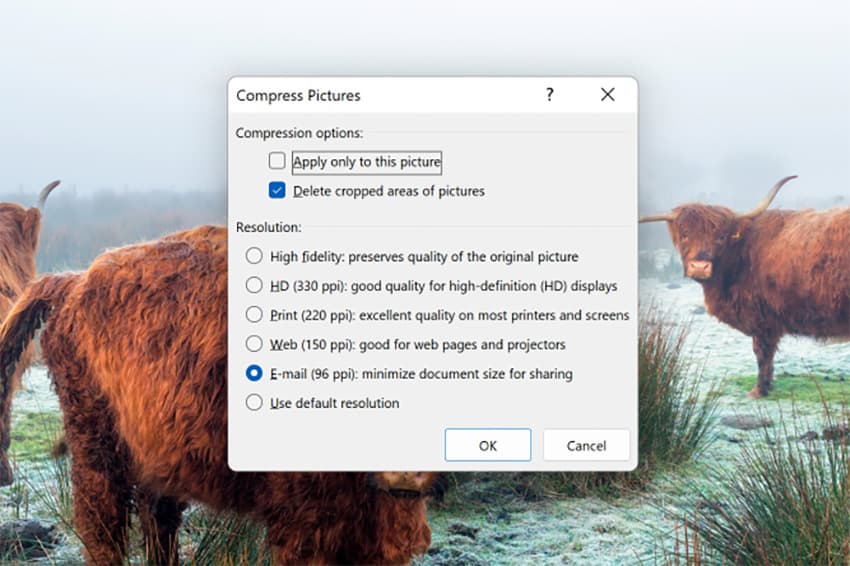
With the menu opened, ensure that the Apply Only to This Picture box is unchecked. Select your other settings, then click OK.
Caution: Be careful when using this feature! It’ll certainly reduce the size of the images in your PowerPoint PPT file. Make sure that you aren’t permanently removing any cropped areas of images that you’ll want to reuse.
3. Save Your PowerPoint in a .zip File
Once you’ve saved your PowerPoint slides, it helps to compress them into .zip files. This is a great way of reducing the size of PowerPoint files. Plus, it’s very easy. Compressing into .zip format is a built-in feature on both Windows and Mac. It’s a powerful way to reduce the PPT size quickly.
Navigate to where you have your PPT slides stored. Then, right-click on the name of your file. On the list of options, choose Compress to ZIP File. You’ll see a new .zip file created, right below your existing slide deck.

That’s it! You’ve learned how to make PowerPoint files smaller by compressing them. When you reduce the file size in PowerPoint like this, you have a slide deck that’s much easier to share.
4. Link to Videos in Your Presentation
Videos are a compelling way to share content in PowerPoint. But if you’re trying to reduce the file size in PowerPoint, they can become a real challenge! Fortunately, you have options to share videos, even as you reduce PowerPoint file size.
One option is to link to multimedia objects, instead of embedding them in the file. This way, you can include videos while still working to reduce the file size.
In PowerPoint, there are two ways to include video files in your presentation:
- Insert the video directly into the PowerPoint file itself.
- Link to the video file.
Both of these options will place a video on the PowerPoint canvas, but in very different ways. Inserting the video will include it as a part of the PowerPoint file, so you can send it to anyone and the video will play.
But if you’re in PowerPoint reducing file size, this isn’t the best option. Video files are often very large. Linking to videos is a better way of reducing the size of a PowerPoint file.
To get started, find the Insert tab on PowerPoint’s ribbon. In the Media group on the right, click on the Video dropdown arrow. From the list of options, choose This Device.
The Insert Video file browser will launch. Here, navigate to a video file that you have stored on your computer. Then, click on it to select it.
Next, find the Insert dropdown in the Tools section. This is in the lower right corner of the Insert Video browser. On the dropdown, click Link to File.

Linking to the video references the original file and simply links to it. You’re creating a reference to the video file instead of adding it to your presentation file.

Tip: There’s a key downside to this PowerPoint reduce file size technique. If you link to your video and send the presentation to others, the video won’t play correctly. PowerPoint looks for the video on the local device instead of inside the PowerPoint file.
Ideally, your video is hosted somewhere online, like YouTube. So, you neither have to embed the video in your PowerPoint file, or link to it on your computer.
5. Use the Insert Tab to Add Photos
Photos are the best way to bring your PowerPoint slides to life. But if you need to reduce the PPT file size, sometimes they can cause you trouble.
But that doesn’t mean you should leave photos out of your slide decks. You can use a different technique to add them to your slides and enjoy smaller file sizes.
When you use a PPT template, you may find that you can drag and drop images right onto your slides. This is the easiest – and fastest – way to add photos to your slides. But it also has a cost in file size.
Images that you drag and drop onto slides aren’t compressed at all. For one or two images, this doesn’t matter. But if you’ve got a fully illustrated deck, your file size can quickly get out of control.

To help with this, try using PowerPoint’s Insert tab to add photos.
Working on a slide, go to Insert up on the ribbon. Then, choose Pictures > This Device. Browse to a photo that you’ve saved. Click Insert to add it to your slide.
This way, PowerPoint compresses and reduces the size of any photos that you add to your slide deck.
6. Share PPT Slides in PDF Format
Let’s face it. PowerPoint slides are built for sharing. That means that you need to know how to reduce PowerPoint file size at every opportunity. When sharing your slides, it’s also crucial to protect them to ensure that your content remains secure. One effective way to do this is to protect the pdf online.
At the same time, you need those who you share slides with to be able to read and view them on any device. Fortunately, these two goals can be easily accomplished at the same time.
By saving a PPT deck as a PDF file, you can see how to compress PowerPoint file size fast. Plus, you can also edit PDF files with easily accessible tools, and they can be read on almost any device. They also take up less file space than a .ppt or .pptx file. They display your slides without the format settings that PowerPoint adds.
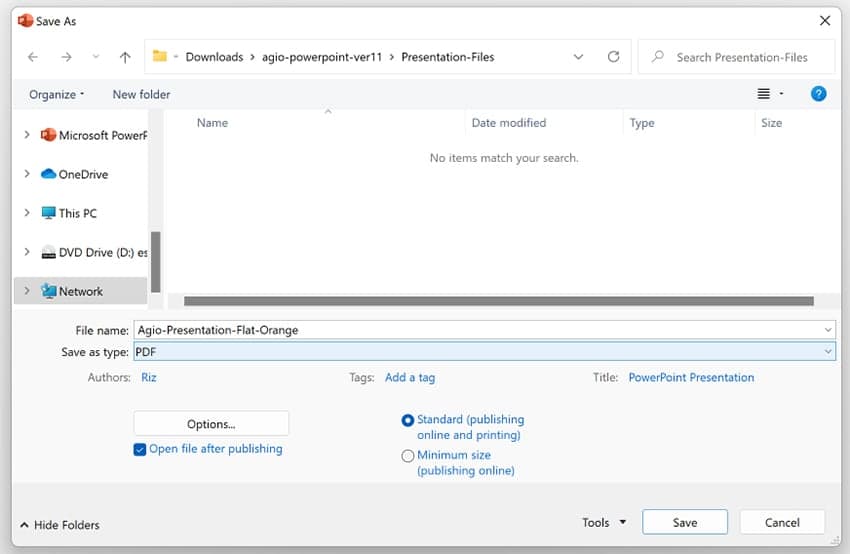
When you click Save As to save your slide deck, choose PDF from the Save As Type dropdown. In moments, your slide deck will be in a versatile, minimally sized format that you can share far and wide. You can also create a digital flipbook from your presentation for an interactive experience that keeps file sizes manageable.
7. Reduce Embedded Characters
When you think about how to compress PowerPoint file size, fonts are a big part of it. You may use custom fonts in your work, and you need to be sure that other users can see them. That’s true even if they don’t have the fonts installed on their computer.
Fortunately, there’s an easy fix. This helps you reduce the PPT file size quickly. Working in PowerPoint, go to the File > Options menu. You’ll see a list of option tabs on the left. From this, click on Save.

Check the box next to Embed Fonts in the File. Then, check Embed Only the Characters Used in the Presentation. If PPT embeds fonts, they’re always visible. But using this feature can make your PowerPoint files larger.
Now, by default, when you save PPT decks with custom fonts, they won’t take up much extra file space. This is how to reduce PowerPoint file size quickly.
8. Use Charts and Embedded Objects as Images
PowerPoint offers a variety of ways to pull in extra data on your spreadsheets. These can include Excel charts, graphs, and much more. But by linking data in this way, you may find yourself working with very large files.

Remember, illustrations like this display data. Their ability to update from the source is useful, but it increases PowerPoint file size. Instead of adding live-updating charts, try adding screenshots or image versions instead. By changing charts and objects to images, you can save file space immediately.
Once you’ve got the images saved, add them to your slides with the Insert menu. This saves space over dragging and dropping.
Best PowerPoint (PPT) Presentation Designs on Envato Elements (Unlimited Downloads)
Envato Elements has thousands of the very best PowerPoint presentation designs for you. It’s a compelling offer. Unlock unlimited downloads with a flat-rate monthly membership.
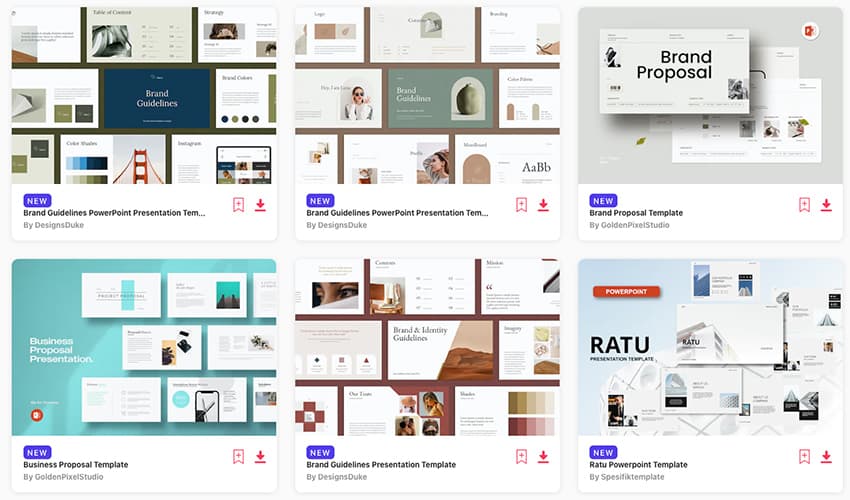
Reduce PowerPoint file size in style with these powerful premium templates from Envato Elements.
Think that trying to reduce PowerPoint file size means cutting your style? Think again. Thanks to versatile Envato Elements templates, you capture the best of both worlds. Reduce the PPT file size while you build stunning stylish slides for every occasion.
Elements offers stylish PowerPoint templates featuring:
- infographics
- slideshows
- timelines
- animations
Simply drop in your content, and you’re on the way to the most impact at minimal size. Join Elements now.
5 Top Templates to Reduce PPT File Size (From Envato Elements – For 2023)
These stunning templates from Envato Elements make it easy to reduce PowerPoint file size:

Never give up on style when you try to reduce PPT size. Librario is a spectacular PowerPoint template for any project. Inside, you’ll find over 150 slides in every layout imaginable. These are spread over five beautiful color themes. Master slide layouts make bulk edits simple. Plus, that helps reduce the file size.
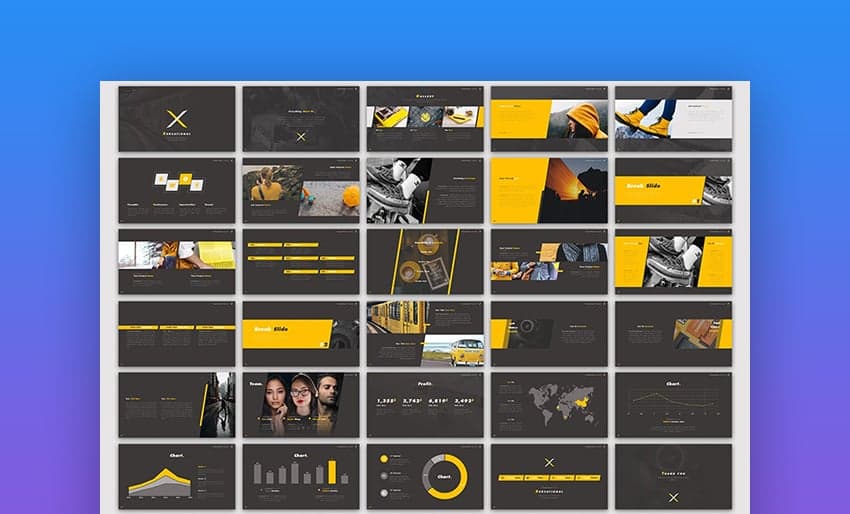
When you think about how to reduce PowerPoint file size, consider what you’re trying to do. Likely, you want to share your slides with an audience virtually. That means giving them slide layouts they’ll be thrilled with. SENSASIONAL delivers, with 30 dark and stylish slides inside. Every element is fully customizable, with drag-and-drop graphics.

Thanks to Elements, you can add images and still reduce PowerPoint file size! Visualizm is a sleek, modern template to help you do exactly that. With cool, grungy vibes, it’s easy to adapt to your next project. Custom placeholders let you add content with just a few clicks. There are even vector icons included for quick style changes.

Station is another premium PPT template to reduce size and boost design. It’s illustrated in memorable shades of pink and purple. They’re sure to grab audience attention. Each slide is completely customizable, with some featuring world maps and unique icons. A handy reference guide is included if you need help getting started.

Imagine how to compress PowerPoint file size while still sharing plenty of content. One way is to embrace minimalism. Trendy and modern, this design focuses on sharp contrasts and open spaces. Defender is a prime example, featuring 30 handcrafted slides. Master slides and image placeholders make it easy for you to build amazing slide decks.
More Top PowerPoint Templates
At Envato Tuts+, we’re passionate about PowerPoint templates. They help our readers save time and give great presentations without learning how to do everything on their own.
We keep the best PowerPoint templates listed in our guide, Microsoft PowerPoint Templates (Ultimate Guide to the Best PPT.)
Common PowerPoint Questions Answered (FAQ)
In this tutorial, you’ve learned how to reduce PowerPoint file size. This is an important skill to save disk space and make it easier to share with your collaborators. Reduce PowerPoint file size to be a considerate presenter and content creator.
It’s okay if you still have questions. Let’s tackle five of the most popular PowerPoint questions:
1. What Are PowerPoint Layouts?
One way to reduce the PPT file size is to reuse similar designs with only minor modifications. PowerPoint layouts give you pre-built sets of slide designs that save you time.
2. What Dimensions Should You Use For PowerPoint?
Dimensions describe the shape and size of your PowerPoint template. Your settings matter because they’ll help you cover the screen completely. Choosing lower dimensions can also help you reduce the PPT file size.
3. How Do I Work With Images in Microsoft PowerPoint?
Images are one type of content that can really increase your PowerPoint file size. It’s important to work with them carefully so that your PowerPoint doesn’t explode in file size.
Pairing this tutorial with what you’ve already learned helps you master how to reduce PowerPoint file size. You’ll see options that show you how to compress PowerPoint file size by modifying images.
4. How Should You Show Data in PowerPoint?
Never create a slide that’s chock full of data and statistics in pure text format. Instead, lean on graphs and charts to display the data in an intuitive way. PowerPoint makes this easy, and we’ll show you how.
By the way, mastering charts and graphs can also help you reduce the PPT file size. When you use well-crafted visuals instead of embedding data, your file size will really benefit.
5. Can You Export?
Have you had issues reducing PPT file size to the point you can email it? Here’s an idea: export it as a video, then upload it to a service like YouTube.
Learning how to reduce PowerPoint file size is sometimes a matter of working around the app. You can export your PowerPoint presentation as a video, then use an online platform to overcome large files.
Learn More About How to Use Microsoft PowerPoint
Pro presenters know that the work of learning is never done. PowerPoint has so many features that it’s impossible to know them all. Now, you’ll be reducing the size of PowerPoint files even as you craft amazing designs!
You know how to reduce PowerPoint file size to accommodate more options. Keep learning by checking out our resource, How to Use PowerPoint (Ultimate Tutorial Guide.)
Make Great Presentations (Free PDF eBook Download)
We’ve got a helpful compliment to this tutorial, which will walk you through the complete presentation process. Learn how to write your presentation, design it like a pro, and prepare it to present powerfully.
Download our eBook: The Complete Guide to Making Great Presentations. It’s available for free with a subscription to the Tuts+ Business Newsletter.

Reducing the Size of a PowerPoint File (In 2023)
In this tutorial, I showed you some quick steps to reduce the size of your PowerPoint files. Following these simple tips will optimize your presentations and reduce their file size.
What are you waiting for? Embrace these techniques for PowerPoint reducing file size today! In moments, you’ll have shareable slide decks that are easy to send across the world. Audiences will thank you for freeing up space on their devices. And you’ll work in more agile and creative ways as you optimize your designs.
Get started on your journey towards reducing the size of PowerPoint files. Now that you’ve learned how to make PowerPoint files smaller, it’s time to get to work. So join Envato Elements today and find your favorite PPT templates!


