
Is your After Effects playback slow? Are you having display issues? Getting disk space error messages? You might need to clear the disk cache! Read on to learn how to clear the After Effects disk cache.


Sometimes After Effects users will run into an issue that has seemingly come out of nowhere.
Maybe playback is uncharacteristically slow. Maybe your composition isn’t displaying correctly. Or, maybe an error message is telling you that your computer “does not have enough available space”.
The first recommended step when troubleshooting these issues is almost always the same: clear the disk cache.
So what does this mean? And how is it done? Read on to learn all about clearing the After Effects disk cache!

What is the After Effects Disk Cache?
All After Effects users know the importance of speed. If your composition is rendering too slowly it’s almost impossible to get any work done.
To help with this, After Effects has a clever feature you can use to maximize speed: the disk cache.
In short, After Effects will save copies of video previews, rendered layers, and project media in separate locations. That way, they can be accessed easily. After Effects can grab the required files from the cache and play back your previews as quickly as possible.
It means the software doesn’t need to access your original media and re-render your composition every time you want to watch it again.
It’s a crucial feature of the software to ensure it runs as efficiently as possible.
Why Clear the Disk Cache in After Effects?
First and foremost, it’s the easiest way to free up space on your hard drive.
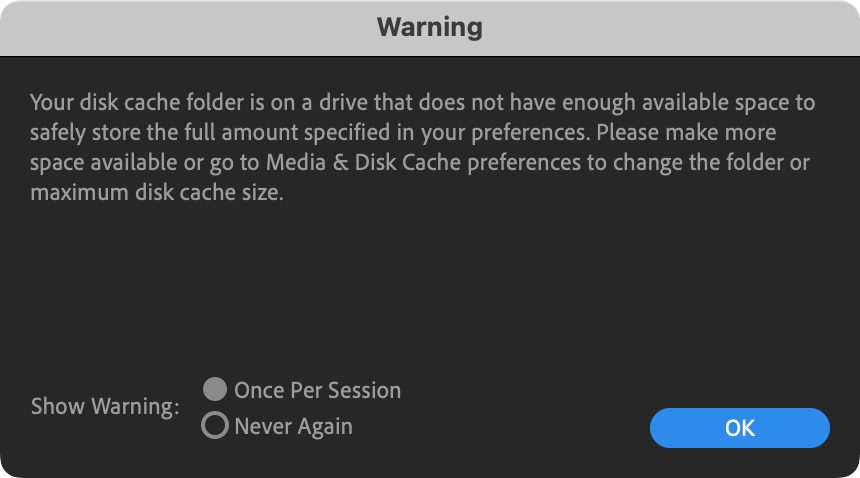
If your hard drive is too full, After Effects can’t create new previews. This results in lagging performance. You might see an error message from After Effects starting with:
“Your disk cache folder is on a drive that does not have enough available space…”
Clearing your disk cache can clear up hundreds of gigabytes in seconds.
Secondly, sometimes After Effects doesn’t work perfectly. You might notice a layer in your composition isn’t appearing as it should. Maybe a font isn’t displaying correctly in a text layer. Maybe an effect isn’t working. Or, a video file appears glitchy.
These issues are often caused by After Effects incorrectly using an old cached file instead of rendering a new preview. Luckily this can be fixed very quickly and easily by clearing the cache.
Once the cache is cleared, After Effects will have to create new previews from scratch. Problem solved!
How to Clear Your After Effects Disk Cache
There are two methods to clear your disk cache in After Effects. Let’s start with the fastest option.

The Fastest Method: Purge
You can clear your cache in just a few clicks with this speedy method.
Simply click Edit > Purge > All Memory & Disk Cache…
You’ll be prompted with a confirmation dialog box. Click OK.
After Effects will immediately start clearing the cache. This may take a few minutes, depending on how much data you need to clear.
You’ll notice that the Purge menu offers the option to clear the Memory and Disk Cache separately. So what’s the difference?
- In simple terms, Memory is stored in your RAM and includes all rendered previews in your current project. This clears automatically every time you close After Effects. So, you might as well clear it while you’re there.
- The Disk Cache will save previews to a specific location on your hard drive. These files will stay on your hard drive even after you close After Effects. This saves you time whenever you reopen a project. The downside is that they take up a lot of disk space.

The Other Method: Preferences
You can also use the Preferences menu in After Effects to clear the cache.
Click After Effects > Settings… > Media & Disk Cache…
Then simply click Empty Disk Cache…
Like with the previous method, it might take a few minutes for your cache to clear, depending on the amount of data.
You’ll notice this method also offers the option to clear your Conformed Media Cache. This is a separate cache that includes certain video and audio files.
After Effects will convert these files to a simpler format to allow for easier playback. You can click Clean Database & Cache if you wish to save even more space. It’s probably not necessary though. The Disk Cache is more commonly the cause of issues.
Downsides to Clearing the Disk Cache
Are there any risks or downsides to clearing the disk cache in After Effects? The short answer is no.
Cached files are always temporary files. They are regularly overwritten as newer files are cached.
Clearing the cache will not negatively affect any of your After Effects projects. You’re not losing any media or deleting anything important.
You’re just clearing preview files. So, the only impact is that After Effects will need to create new previews from scratch the next time you open a project.
You can see all the potential benefits when it comes to performance and troubleshooting. It’s an easy decision.
To Wrap Up
Clearing the After Effects disk cache should be your first port of call when troubleshooting any issue. Think of it as a blank slate for the software. Get all the baggage from previous projects cleared out of the way. Then, After Effects can start fresh and hopefully run more smoothly.
Even if you’re not having any issues, it’s a good idea to clean your cache regularly to free up your disk space and safeguard against future issues.
While you’re here, check out this tutorial on how to add an adjustment layer in After Effects!


