
Learn how to install transitions in Premiere Pro in this quick practical walkthrough.




How do you install transitions in Premiere Pro? We’ll walk you through it in this step-by-step tutorial. To demonstrate, I’m using some transitions and a few pieces of stock footage from Envato Elements.
Transitions
Stock Footage
How to Install Transitions in Premiere Pro
Insert Footage
Insert footage into your timeline. At the moment, as there are no transitions applied, there would just be hard cuts between each clip.

Import Transitions
In this example, I’m installing Glitch Transitions for Premiere Pro.

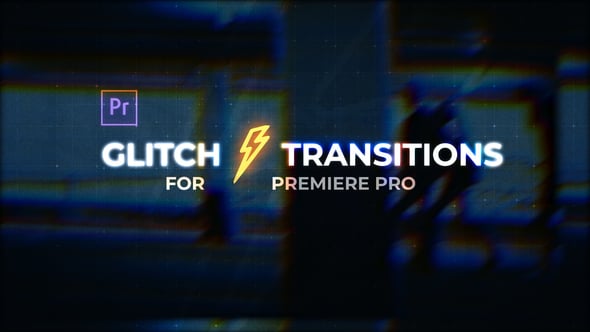
When you’ve unzipped your transitions download, go to File > Import and navigate to where they’re saved. Rather than the individual files that may be in there (as MP4s), look for the Project File with the Premiere Pro icon on it.

Go to File > Import.
You’ll get a popup with a couple of options. Select Import Entire Project and tick Create Folder for Imported Items, which will help to keep your transitions organized and neat in the project.

Preview Transitions
You’ll then see that a new folder will appear in Project with dropdown folders containing the transitions.

A new folder will appear in Project with dropdown folders containing the transitions.
Transitions and the assets that make them are split into separate, relevant folders. You can ignore the assets if you don’t want to make changes to the transition effect.

Choose Open in Source Monitor.
In Transitions > Glitch folders, each subsequent folder you see is a transition effect, and you can right-click on any folder and choose Open in Source Monitor.

This will let you play the effect in a new panel, without having to add it to your timeline. Obviously, playing it in this way will only show you the effect itself, not the effect on any footage.
Applying Transitions to Your Footage
In your Timeline you’ll see an icon on the left that looks like a file hierarchy. If you hover over it, it says, “Insert and overwrite sequences as nests or individual clips.” Click it so that it is selected (it goes from blue to white), and this will let you edit the sequence as a single clip grouped together rather than splitting everything up into multiple clips.

From your Project panel, drag a transition into the timeline above where two pieces of footage meet. There’s an obvious join point, so you’ll be able to match the line of the transition up with the line between the video clips.

Press play to see the transition effect on the footage.

Remember, you don’t just need to use transitions as a way to cut between footage—you can pop them at the start and end of your video too, rather than just fading out.
More Video Resources From Envato
Read the Envato Video Marketing Guide
Boost your video marketing skills with our comprehensive guide: You’ll learn video marketing from start to finish.
Download Free Video Templates From Mixkit
Check out Mixkit for free stock videos, free stock music, and free templates for Adobe Premiere Pro. Yes, free!
Make a Motion Graphics Video Online With PlaceIt
You don’t need professional software to create visually-appealing videos, you can make them right in your browser: PlaceIt is an online service with a video maker uses professionally-designed motion graphics templates.
Envato Elements: Unlimited Downloads
Envato Elements offers millions of stock items: photos, music, video clips, fonts, graphics templates of all sorts, video project templates for After Effects, Premiere Pro, Final Cut Pro and Motion, and creative courses from Envato Tuts+, all with a single subscription.


