
Light is a powerful storytelling tool. The way you manipulate light can transform a simple scene into a captivating visual narrative. Mastering lighting techniques can be a game-changer for video creators. In this tutorial, learn how to create a stunning spotlight lighting effect in After Effects. Infuse your videos with the perfect dose of drama, mood, and ambiance.


In the world of video production, light is more than just illumination; it’s a powerful storytelling tool. The way you manipulate light can transform a simple scene into a captivating visual narrative. That’s where Adobe After Effects steps into the spotlight (pun intended).
Mastering lighting techniques can be a game-changer for video creators. This is especially true for those new to the dynamic realm of After Effects. In this tutorial, learn how to make a stunning spotlight lighting effect in After Effects. This effect will capture your audience’s attention and breathe life into your video projects.
So let’s dive into the art of lighting in After Effects.
Explore the ins and outs of spotlight creation and how to fine-tune your lighting. You’ll even learn about the other lighting options at your disposal in After Effects.
By the end of this tutorial, you’ll be well-equipped to infuse your videos with the perfect dose of drama, mood, and ambiance.
Understanding the Basics of Lighting in After Effects
You have at your disposal an array of lighting tools within After Effects.
Each has its own unique characteristics and applications. Understanding these different light types is fundamental to achieving your desired look and mood for your video projects.
Before we delve into creating a spotlight lighting effect, let’s take a moment to introduce you to the diverse family of light types available in After Effects. Just like a cinematographer chooses the right lighting setup for a scene, you too can select the ideal light type to illuminate your scene in After Effects.
In After Effects, you have four primary light types at your disposal:
- Spot Light: This is the star of our tutorial. It allows you to focus a concentrated beam of light on a specific area. It’s perfect for highlighting a subject or creating dramatic title effects. Spotlights can also give off a moody vibe by creating a natural-looking vignette with the way the light falls off at the edges of the scene.
- Parallel Light: This is also known as a directional light. It emits light in a single direction, which is similar to sunlight. It’s great for creating realistic outdoor scenes or simulating sunlight streaming through windows.
- Point Light: Think of it as a light bulb suspended in 3D space in your composition. It radiates light in all directions. It makes it suitable for creating ambient lighting or simulating practical light sources like lamps.
- Ambient Light: The gentle, all-encompassing light that bathes your entire composition. It can be used to simulate a soft, even illumination. It’s often seen in scenes like moonlight or cloudy days.
In this tutorial, we’ll focus primarily on the spotlight. But, keep in mind that it’s essential to be aware of these other light types. They each have their place in After Effects.
After Effects 3D Space is Actually 2.5D
It is important to note that the 3D space in After Effects is actually 2.5D. What this means is it allows you to create the illusion of three-dimensional depth within a two-dimensional workspace.
It’s not true 3D like what you’d find in dedicated 3D software. But, it offers a powerful way to add depth, parallax, and perspective to your animations and composites. Just keep this in mind when you are working with 3D layers and lights in After Effects.
Additionally, you can use After Effects lights on 3D models using the Cinema 4D Cineware extension or using 3rd-party plugins, such as Element 3D.
How to Make a Spotlight in After Effects
So far we introduced you to the variety of light types in After Effects. Now, let’s roll up our sleeves and explore the art of creating a spotlight lighting effect in After Effects!
Scene Setup
We first need to have a scene set up in After Effects in order to see the lighting effects from our spotlight. This can be any scene you want, but it will need to contain some 3D layers in order to be affected by the lighting effects.
A simple setup you can create is to add in a Solid layer and a Text layer. Make them both 3D layers. This will act like a title card, using the text as the title and the solid layer as the background.

Once you have done that, you can scale and stylize your text titles and background solid layer to taste. Add effects such as Noise or a Gradient Ramp to the background solid layer if you like.

Finally, you need to separate the two 3D layers from each other to create some depth. This allows your text to cast a shadow back on the background solid layer once you create a spotlight.
Select your background solid layer and move it backward in Z-space. (Around 600 pixels should be fine.) Feel free to then scale up the size of the background solid layer so that it fills up the entire background frame. Notice in the image below the separation between the 3D text layer and the 3D solid layer.

Turn on Cast Shadows
If you want any 3D layers in your composition to cast shadows, you need to select the layer in the composition timeline and toggle down the layer options. Turn on Cast Shadows under Material Options.

Add in a “Spot” Light
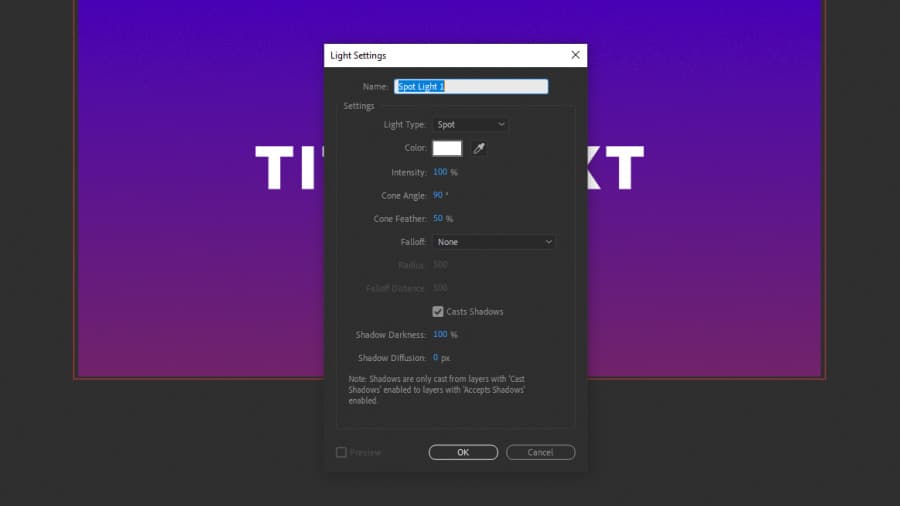
In the Composition panel, right-click on the empty space. Choose New > Light. A dialog box will appear; select “Spot” as the light type. Then check on the box that says Cast Shadows. Finally, click OK. You will now see the spotlight added to your After Effects scene.
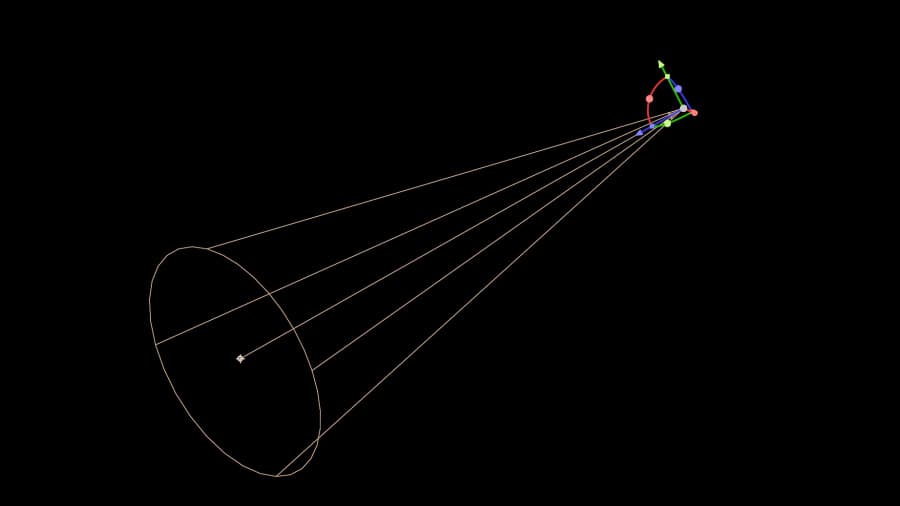
The light is represented by a wireframe mesh. You can toggle the light wireframe mesh on and off by using the shortcut Ctrl + Shift + H on a PC or Cmd + Shift + H on a Mac. Toggling the light mesh on and off can help you see your final scene better. You’ll need the wireframe mesh to be on when you are moving the light around. That way, you can position it easier.

Adjusting the Position and Angle of the Spotlight
You’ll now see a “Spot Light” layer in your composition timeline. Select it. In the composition window, you’ll see a control handle representing the light’s position. Click and drag to position the spotlight where you want it.
You can also click and drag on the Point of Interest, which is effectively where the spotlight is pointing. Adjusting this allows you to “aim” the spotlight effect.
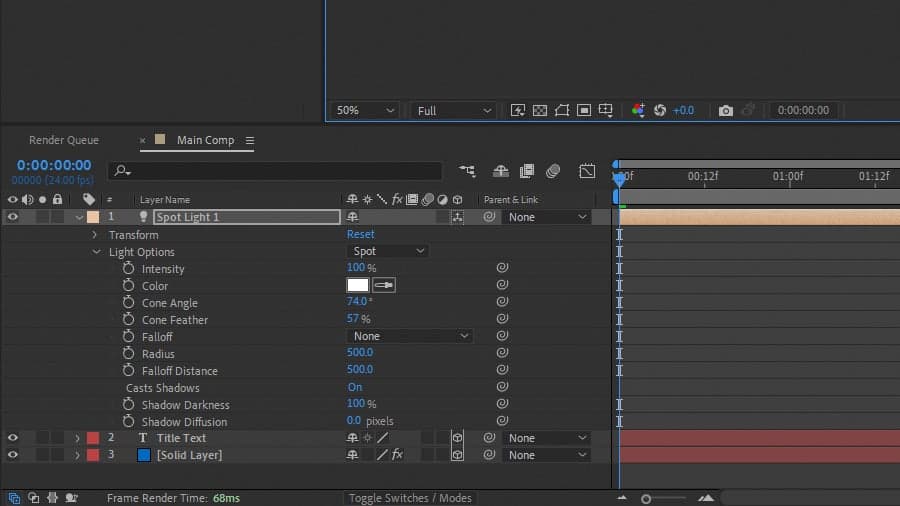
You can toggle open the spotlight layer options in the composition timeline. You will see the Transform options, where you can also adjust the position of the light. Also, notice the Light Options, where you can refine the look of the spotlight.
Fine-Tuning the Light Options
As mentioned, the Light Options are where you can refine the look and settings of your spotlight.
Some of the most important settings you likely want to adjust are Intensity, Color, Cone Angle, and Cone Feather.
- The Intensity is effectively how bright the spotlight is. Color allows you to add color to the light if you want. The default color is white.
- The Cone Angle affects how wide the spotlight area is overall. You can adjust this so that the spotlight is only lighting up the area of the scene you want it to.
- Finally, the Cone Feather affects how harsh or soft the edge of the spotlight effect is.
Fine-Tuning the Shadows
Also under the Light Options, notice some important shadow options.
- First, make sure Cast Shadows are enabled for the light. (If you want shadows in your scene.)
- Next, you can adjust the Shadow Darkness, which effectively controls how light or dark the shadows cast in your scene are.
- Finally, you can adjust the Shadow Diffusion, which creates a much more natural and softer look on the shadows. Just as if you were adding paper diffusion over a real light. It helps take the harsh edges off of the shadows in your scene.

To Wrap Up
Utilizing the spotlight effect in After Effects opens up a world of creative possibilities for creators. Understanding the diverse family of light types and the 2.5D space within After Effects is essential.
With this knowledge, you can expertly craft your own spotlights and create some dynamic and moody scenes within After Effects! Don’t forget to check out this awesome guide on how to create a logo animation in After Effects.


